
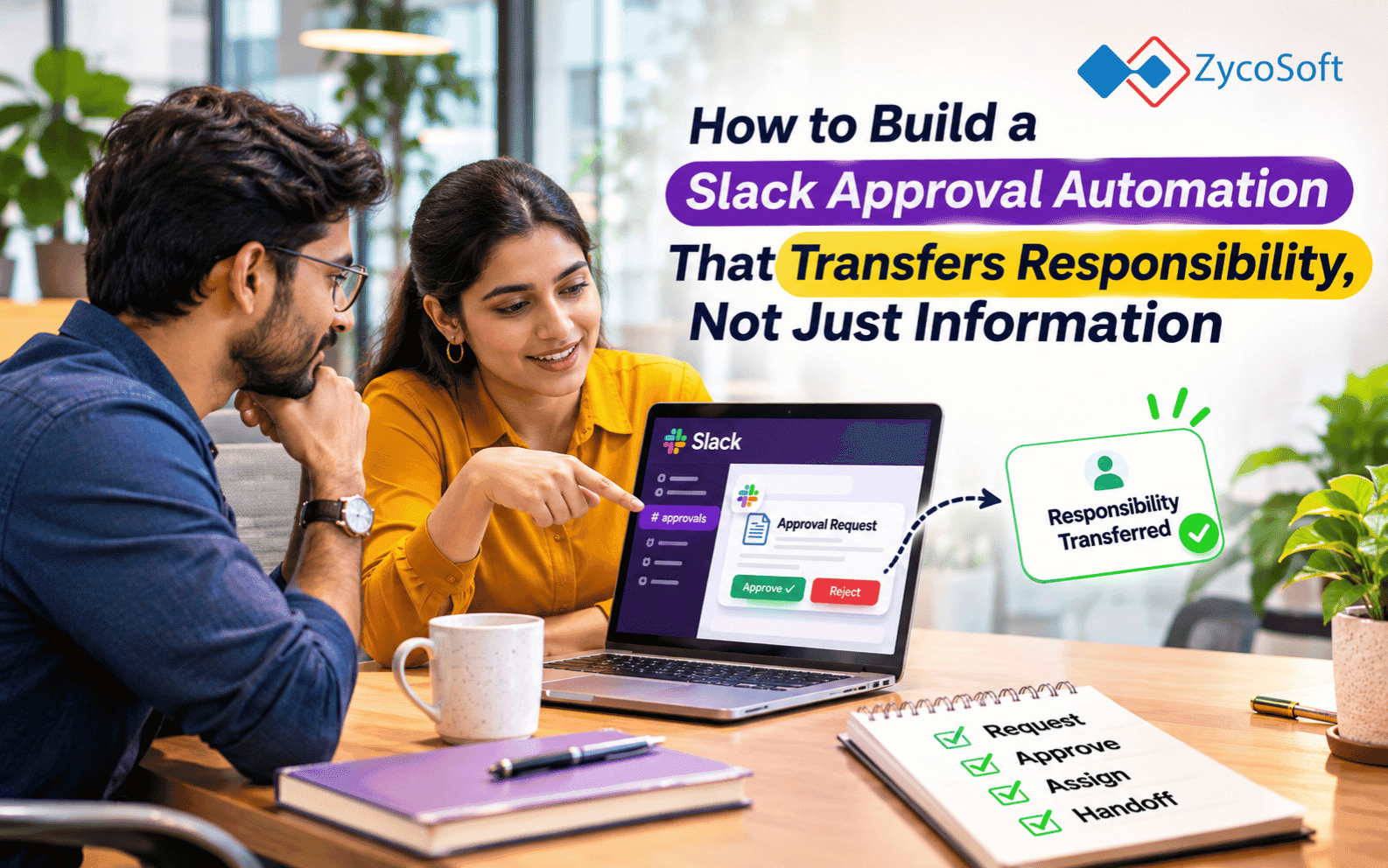
How to Build a Slack Approval Automation That Transfers Responsibility, Not Just Information .
Slack does not have an approval problem. The teams using it do.
The pattern is familiar: someone posts a request in a channel, tags the approver, and waits. The approver sees it, intends to respond, gets pulled into something else, and forgets. Three days later, someone sends a follow-up in a different thread. No one is sure whether the original request was approved, denied, or just buried. The vendor invoice sits unpaid. The refund does not go out. The deal does not get the sign-off it needed.
The problem is not Slack. Email has the same failure mode. The problem is that both tools transfer information well but transfer responsibility poorly. When you post a request in a Slack thread, the approval lives in that thread. No one owns the deadline. No one escalates if it goes unanswered. No one logs the outcome.
This post walks through building a named automation that fixes that. The system is called the Slack Approval Router. It has five components: trigger, routing, timeout logic, audit trail, and edge case handling. By the end, you will have enough to build a working version before Friday using n8n or Make, Slack, and Google Sheets or Airtable.
Key Takeaways :
- Approval workflows fail when information transfers but ownership does not. The fix is a system, not a channel.
- Every approval needs four things: a named trigger, a single accountable recipient, a timeout with defined consequences, and a logged outcome.
- n8n or Make handles orchestration. Slack handles the UI. Google Sheets or Airtable holds the audit log.
- Edge cases (absent approver, dual approval, mid-flow amount change) need a written rule, not ad hoc judgment.
- You can have a working prototype running in under a day on a free n8n Cloud account.
Step 1: Define the Trigger
The most common reason approval automations fail before they are built is a vague trigger. "When someone needs approval" is not a trigger.
These are:
- A form submission crosses a threshold (expense request over $500).
- A deal stage changes in the CRM (deal value moves above $10,000).
- A refund request is submitted in Zendesk or Freshdesk.
- A vendor invoice is received by email or entered in accounting software.
- A new contractor or vendor onboarding record is created.
Each trigger should fire from a system of record, not a Slack message. If the trigger is a human typing in Slack, you have not changed the process, you have just added a bot to it.
In n8n, this is a webhook node or a polling trigger on your CRM, form tool (Typeform, Tally), or accounting system. In Make, the same logic applies via a Watch Records module or a Custom Webhook. The event from the source system carries all the data you need: requester name, amount, reason, timestamp.
One decision to make here: synchronous vs. asynchronous triggers. A form submission is synchronous. A refund queue is asynchronous (items accumulate and process in batches). For approval workflows, synchronous is almost always correct. When a $3,000 invoice arrives, the approval clock starts immediately.
Step 2: Route to the Right Person with Full Context
Most Slack approval messages fail on context. The approver gets a message that says "Invoice approval needed" with a link, clicks the link, sees an invoice from a vendor they do not immediately recognize, and either defers or approves blindly.
Good routing means the Slack message contains everything the approver needs to decide without leaving Slack:
[APPROVAL REQUEST]
Requester: Maria Chen
Type: Vendor Invoice
Vendor: Acme Hosting Solutions
Amount: $2,340.00
Invoice #: INV-2024-0891
Due date: Nov 22
Budget line: Infrastructure
Description: Monthly server hosting (October)

[Approve] [Reject] [Ask a question]
The three buttons are Slack interactive components, implemented as an actions block in the Slack Block Kit API. Each button posts back to your n8n or Make webhook with the action taken and the approver's Slack user ID. No thread reply needed. The decision is a button click.
Routing to the right person requires a routing table. Build it in a Google Sheet or Airtable base with four columns: request type, amount range (if applicable), primary approver Slack ID, backup approver Slack ID. Your automation reads this table on each trigger and looks up who gets the request. Hardcoding approver IDs in the workflow is a maintenance liability; keep it in the data layer.
For routing, use Slack's chat.postMessage API with the approver's Slack user ID as the channel parameter. This sends a direct message, not a channel post. Channel posts create ambiguity about who owns the response.
Step 3: Timeout Logic
Most teams build the trigger and the routing, then stop. The timeout logic is what separates an automation from a notification.
Three timeout tiers to configure :
4-hour reminder. No response after 4 hours: send the approver a follow-up DM. Plain text, no buttons. Something like: "You have a pending approval from Maria Chen ($2,340 vendor invoice). The request is now 4 hours old." Keep it short. This is not an escalation, it is a nudge.
24-hour escalation. No response after 24 hours: send the original Slack message to the backup approver or the approver's manager. Include the original context block plus a note: "This request has been pending for 24 hours without a response." The original approver also gets a DM noting the escalation. Both parties now know the clock is running.
48-hour auto-action.
The right action here depends on the request type:
- For low-risk, time-sensitive requests (refunds under $200, pre-approved vendor invoices under a fixed threshold): auto-approve and log the outcome as "Auto-approved at 48h timeout." Use this only where the cost of delay exceeds the cost of the occasional wrong call.
- For high-value or high-risk requests: auto-reject with a notification to the requester that they should resubmit. Do not leave the request in limbo.
- For everything in between: auto-escalate to a named fallback (the ops lead, the CFO, whoever owns the approval function).
Configure the timeout tiers in your automation as a series of Wait nodes (n8n) or Delay modules (Make), each checking whether the approval status field in your log has been updated. If it has, the timeout path exits. If it has not, the reminder or escalation fires.
Step 4: Audit Trail
Every approval, every reminder, every escalation, and every timeout outcome gets written to a Google Sheet or Airtable base. No exceptions.
Minimum columns for the log:
Column
Contents
Timestamp
ISO 8601, UTC
Request ID
Auto-generated UUID
Request Type
Invoice, refund, deal approval, etc.
Requester
Name and email
Amount
Numeric, blank if not applicable
Primary Approver
Name and Slack ID
Status
Pending / Approved / Rejected / Escalated / Auto-approved / Auto-rejected
Decision Timestamp
When the button was clicked or timeout fired
Decision Made By
Approver name, or "System (48h timeout)"
Notes
Any text the approver added via a modal
In n8n, write to Google Sheets using the Google Sheets node with an "Append Row" operation. The row is written twice: once when the request is created (Status: Pending), and once when the outcome is recorded (Status: Approved / Rejected). In Make, the Google Sheets module works the same way; use a lookup on the Request ID to find and update the row.
Airtable is a cleaner option if your team needs to filter and report on approval history. The Airtable API in n8n lets you create a record on trigger and patch it on outcome. The main advantage over Sheets is that Airtable handles concurrent writes more gracefully if your approval volume is high.
One operational rule: the log is append-only. Never delete rows, even for test runs. Mark test entries with a "Test" flag in a separate column. The log is evidence of what happened; it should not be edited.
Step 5: Edge Cases
The approver is out of office. This is why the routing table needs a backup approver for every request type. When the primary approver has not responded in 4 hours, check a simple status indicator before escalating. The lightest-weight way to do this: add a Status column to your routing table (Active / OOO) and update it manually. Heavier but more reliable: use the Slack API's users.getPresence endpoint to check whether the approver is active. If they have been away for more than a few hours, skip the 4-hour reminder and go straight to the backup.
Two people need to approve. Run two parallel approval branches in your workflow. Each sends its own Slack DM and waits for a response. The final step fires only after both branches return an Approved status. In n8n, use a Merge node set to "Wait for All." Set a combined timeout: if either approver does not respond within 24 hours, escalate both. The audit log should record both approvers and both decision timestamps separately.
The amount changes mid-flow. This is a resubmit situation. If the source record is updated after the approval has been sent, your trigger should detect the change (n8n's Change Trigger, or a polling comparison on the amount field) and cancel the original approval request by sending the approver a DM noting that the request has been updated, then restarting the workflow from scratch with the new amount. The original pending record in the log should be marked Cancelled, with a note linking to the new Request ID.
The Tool Stack :
Orchestration: n8n (self-hosted or n8n Cloud) is the right choice for most teams. The visual workflow editor handles the branching logic cleanly. The free Cloud tier is enough for under 5,000 workflow executions per month. If your approval volume is higher, the Starter plan at $20/month covers 10,000 executions. Make (formerly Integromat) is a solid alternative if your team already uses it; the scenario-based model is slightly more constrained for complex branching but the Slack and Google Sheets integrations are mature.
Slack integration: Slack's Block Kit API handles everything. Interactive buttons (actions blocks), modal dialogs for notes, and simple chat.postMessage calls for reminders. You will need a Slack App with chat:write, users:read, and users.profile:read scopes. Create the app at api.slack.com and store the bot token as an environment variable in n8n.
Audit log: Google Sheets is the right starting point. It is free, it is familiar to most ops teams, and it handles concurrent writes well enough for most approval volumes. If you are running more than 50 approvals per day or need filtered views, field-level permissions, or reporting rollups, Airtable's free tier covers up to 1,000 records per base and the API is clean.
Routing table: a second Google Sheet tab or a dedicated Airtable base. Keep this separate from the audit log. It should be easy for a non-technical person to update approver assignments without touching the workflow.
The One Thing You Can Build by Friday :
Build the trigger-to-Slack leg first. Pick one approval type (the most frequent one that currently runs through Slack threads or email). Set up a webhook in n8n or Make that fires on the source event. Write the Block Kit message template. Send it to one test approver's Slack DM. Get the button click logging to a Google Sheet.
That is the full loop for the simplest case: request arrives, person gets a DM with context, clicks Approve or Reject, outcome is logged. It takes 2 to 4 hours to build on a free n8n Cloud account.
Timeout logic and edge cases come in the next iteration. Building the whole system in one session is possible, but building the core loop first means you have something running and can test it against real requests before adding complexity.
If you have been running 50 or more approvals per week through Slack threads, that one working loop will tell you more about what the system needs than any amount of planning upfront.
The operations teams we work with at ZycoSoft almost always have the same starting point: a Slack channel with approval threads going back months, no one sure which decisions were actually made, and a manual process someone keeps meaning to fix. The system described here is not a large project. The first version is a few hours of work.
If you would rather have someone build it for you or audit the one you have already started, we are available for a focused conversation: zycosoft.com/consultation.
Rate this article
Choose a star rating, then submit.
Frequently Asked Questions
A Slack approval automation workflow is a system that routes structured approval requests (vendor invoices, refunds, deal sign-offs) to the right person via Slack DM, waits for a button-click response, escalates if no response arrives within a set timeout, and logs every outcome to a spreadsheet or database. The key distinction from a Slack channel thread is that ownership and deadline are built into the workflow, not left to the approver's memory.
You need three things: an orchestration tool (n8n or Make handles the workflow logic and branching), the Slack API (Block Kit for interactive messages, chat.postMessage for routing, users.getPresence for OOO detection), and an audit log (Google Sheets or Airtable). A free n8n Cloud account and a free Slack App are enough to build and test the first version.
In n8n, use Wait nodes after the initial Slack DM. The first Wait node checks whether the approval status has been updated after 4 hours; if not, it fires a reminder. A second Wait node at 24 hours triggers escalation to the backup approver. At 48 hours, the workflow auto-approves low-risk requests, auto-rejects high-risk ones, or escalates to a named fallback. In Make, Delay modules serve the same function.
Add a backup approver column to your routing table in Google Sheets or Airtable. When the primary approver has not responded within 4 hours, check their status using the Slack API's users.getPresence endpoint. If they have been inactive for several hours, skip the reminder and route directly to the backup approver. For manual teams, a simple OOO status column in the routing table that someone updates at the start of leave works reliably.
At minimum: timestamp, a unique request ID, request type, requester name and email, amount (if applicable), primary approver name and Slack ID, status (Pending, Approved, Rejected, Escalated, Auto-approved, Auto-rejected), decision timestamp, who made the decision, and any notes. The log should be append-only. Never delete rows, even for test runs. Mark test entries with a flag column.
Always a DM. Posting to a channel creates ambiguity about who owns the response. When a request is visible to multiple people, the bystander effect applies: each person assumes someone else will handle it. Routing via chat.postMessage with the approver's Slack user ID as the channel parameter sends directly to that person and makes ownership unambiguous.
Comments
No comments yet. Be the first to share your thoughts.
Leave a comment
Comments are reviewed before they appear publicly.